
Photo to Video AI Free for Portraits and Family Memories

For personal memory projects, photo to video ai free is often searched when a still portrait feels too meaningful to leave flat. However, family photos need a softer workflow than trend clips. The goal is not extreme motion. Instead, the best result usually comes from stable faces, warm light, slow camera movement, and a prompt that protects the original feeling of the image.
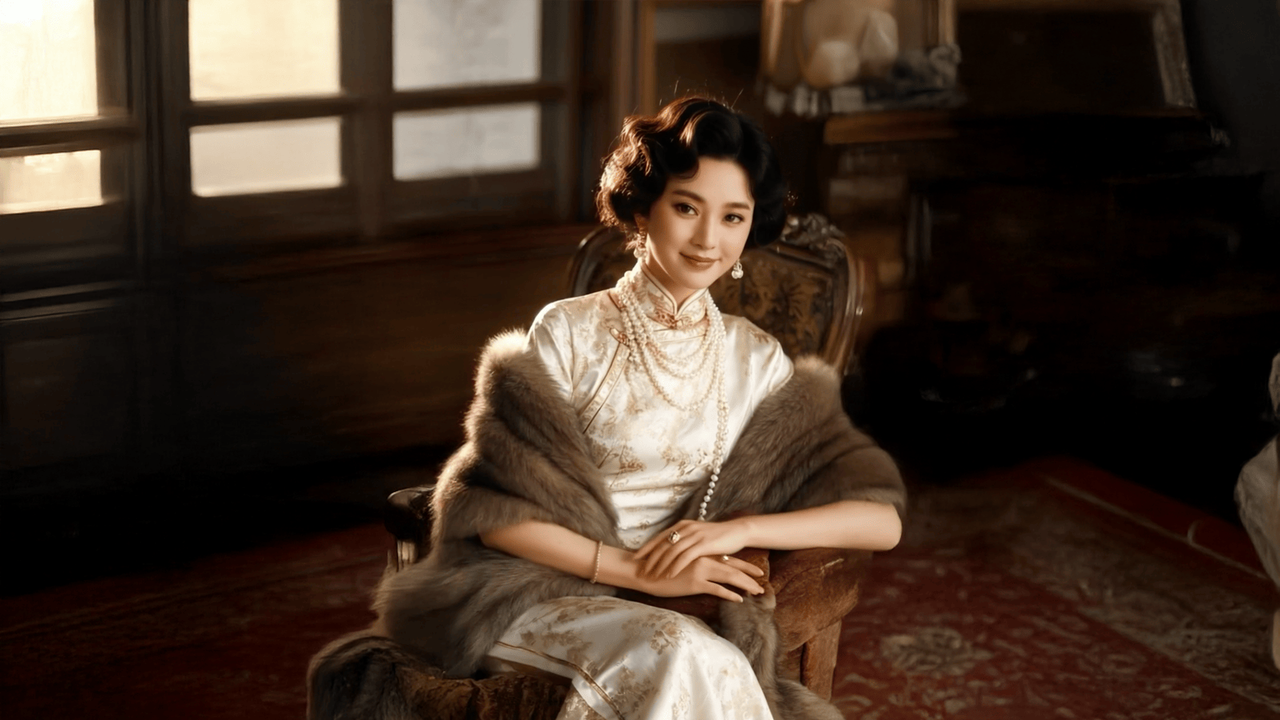 Animate a portrait with image-to-video
1. Why Portraits and Family Photos Need a Softer AI Workflow
Portrait animation is different from a fast social video. A face carries identity, emotion, and memory. Therefore, even a small distortion around the eyes or smile can make the result feel strange.
At the same time, a still portrait can become more expressive with very little movement. A slow push-in, a soft light shift, and subtle breathing can make the frame feel alive. However, a large head turn or forced smile often weakens the emotional value.
For family photo video projects, restraint matters even more. Group photos, wedding portraits, old scans, and childhood images should preserve the original pose. In most cases, camera movement should do the work while faces stay stable.
2. Choose a Photo That Can Handle Gentle Motion
A strong memory video begins before the prompt. First, the photo needs a clear emotional center. This may be one person, a couple, a parent and child, or a small family group.
Next, face detail should be visible. Balanced light, clear eyes, and a simple background make portrait animation more stable. Meanwhile, blurry faces, heavy filters, closed eyes, or tiny group faces usually need simpler motion.
| Photo Type | Best Motion Choice | Why It Works | Avoid |
|---|---|---|---|
| Single portrait | Slow push-in | Adds focus while keeping identity stable. | Large head turn or talking mouth. |
| Wedding portrait | Soft camera drift | Supports a romantic mood without changing faces. | Strong fabric movement or altered smiles. |
| Family group photo | Subtle parallax | Makes the frame breathe while preserving the pose. | Animating every person separately. |
| Old scanned photo | Very light movement | Keeps the archive feeling and avoids over-invention. | Modernizing the face too much. |
| Travel memory | Background atmosphere | Breeze, light, and clouds can move safely. | Background motion that steals attention. |
In simple terms, complex photos need quiet motion. Clean portraits can accept slightly more camera movement. However, the face should remain the protected part of the prompt.
3. A Practical Workflow for a Family Photo Video
A family memory clip should not start with a dramatic prompt. Instead, the first version should test whether the image can move naturally. After that, style and atmosphere can be added.
For a direct first test, the image-to-video tool is the clearest path. It keeps the project focused on one photo, one motion idea, and one short video result.
Step-by-Step Memory Video Workflow
- Select one photo with a clear emotional center. A focused portrait usually works better than a crowded image.
- Define the feeling first. Warm, nostalgic, calm, joyful, reflective, or cinematic are clearer than “make it cool.”
- Choose one motion idea. A slow push-in or gentle camera drift is safer than multiple gestures.
- Protect the face in the prompt. Ask the result to keep facial features, expression, and pose stable.
- Review eyes, mouth, hands, and accessories. These areas reveal most portrait animation issues.
- Only then add style. Effects or a second version should come after the base clip looks natural.
This workflow saves time because it separates the main question from the style question. First, the clip must look stable. Then, the final mood can be improved.
4. Prompt Formulas for Portrait Animation
A good portrait prompt should read like a calm shot direction. It does not need long cinematic language. Instead, it should say what moves, what stays unchanged, and what feeling the clip should carry.
A reliable formula is simple: keep identity stable + add one camera move + add one atmosphere detail + avoid distortion. This structure helps memory video AI produce a more controlled result.
| Use Case | Prompt Direction |
|---|---|
| Single portrait | Keep the person’s facial features stable. Add a slow camera push-in, subtle breathing, soft eye movement, and warm natural light. Preserve the original expression. Avoid face distortion or exaggerated smile. |
| Family group image | Keep every face stable and natural. Add a gentle camera drift and slight background depth. Preserve the original pose and family composition. Avoid changing hands, clothing, or expressions. |
| Old portrait | Create a gentle memory video from this old portrait. Keep the original person, expression, and vintage photo feeling. Add slight camera movement and warm light. Avoid modernizing the face or changing the old-photo texture. |
| Wedding memory | Keep the couple’s faces and pose stable. Add soft camera movement, warm sunset light, and slight fabric softness. Avoid changing smiles, eyes, hands, or dress shape. |
| Birthday montage | Keep the original expression unchanged. Add a soft memory-video feeling, slow push-in, and warm light. Preserve the photo texture and avoid exaggerated blinking or mouth movement. |
The strongest prompts are not the longest prompts. In fact, a short prompt with clear limits is often better than a paragraph full of style words.
5. Real Scene Examples for Personal Memory Clips
Scene planning makes the result feel less generic. A portrait near a window, a family reunion photo, or a childhood image all need different motion choices. Therefore, the prompt should match the memory, not just the image format.
Grandparent portrait by a window
This scene works best with warm window light and a slow push-in. The face should stay almost unchanged. Meanwhile, a slight curtain movement or soft light shift can add life without changing the portrait.
Family reunion group photo
A group image should avoid individual gestures. Instead, camera drift or subtle parallax can make the whole frame feel present. This protects small faces and keeps the original family arrangement intact.
Wedding portrait with soft fabric detail
Wedding photos often include delicate fabric, hair, flowers, and jewelry. For this reason, the prompt should protect the couple’s faces first. Then it can add soft light, gentle fabric movement, and a calm romantic mood.
Childhood photo for a birthday video
A childhood image often has strong emotional value but lower technical quality. Therefore, motion should stay light. A slow zoom, warm glow, and preserved photo texture usually feel safer than strong expression animation.
Travel memory from an old trip
A travel portrait can use background atmosphere. For example, clouds, water, trees, or sunlight can move gently. Still, the person should remain the focus, and the background should not become louder than the memory.
6. Common Mistakes and Practical Fixes
Most weak portrait animations come from overloading the prompt. When the image is asked to smile, turn, blink, move hands, shift light, and zoom at the same time, the final clip often loses stability.
| Problem | Likely Cause | Better Fix |
|---|---|---|
| Face looks different | Motion is too large for the portrait angle. | Reduce to slow push-in and add “keep facial features stable.” |
| Smile becomes unnatural | Prompt asks for emotional change. | Use “preserve the original expression.” |
| Hands or fingers distort | Hands are near the face or moving too much. | Ask for stable hands and avoid gesture motion. |
| Group faces flicker | Too many small faces are animated. | Use camera movement only and preserve the pose. |
| Old photo feels too modern | Prompt changes texture or facial detail too much. | Keep vintage texture and use warm light only. |
A good repair process changes one thing at a time. If the face changes, reduce subject motion first. If the background distracts, remove background motion before rewriting the whole prompt.
7. Match the Vidnix Workflow to the Memory Goal
A portrait project should follow a simple path. First, create a clean base clip. Next, review the face and motion. Finally, add effects or plan more versions only when the base result is stable.
For a single portrait, the best starting point is to turn one photo into video. For a more stylized finish after the base clip works, AI video effects can support a softer mood or creative variation. For several family clips or prompt tests, checking pricing and credits before batch testing keeps the project easier to plan.
| Project Goal | Best Vidnix Path | Practical Reason |
|---|---|---|
| Animate one portrait | Create AI video from image | Keeps the workflow focused on one source photo and one motion prompt. |
| Create a family montage | Review credits before testing | Helps plan multiple prompt versions without interrupting the creative process. |
| Add a warmer final mood | Try video effects | Works best after the face and base camera motion already look natural. |
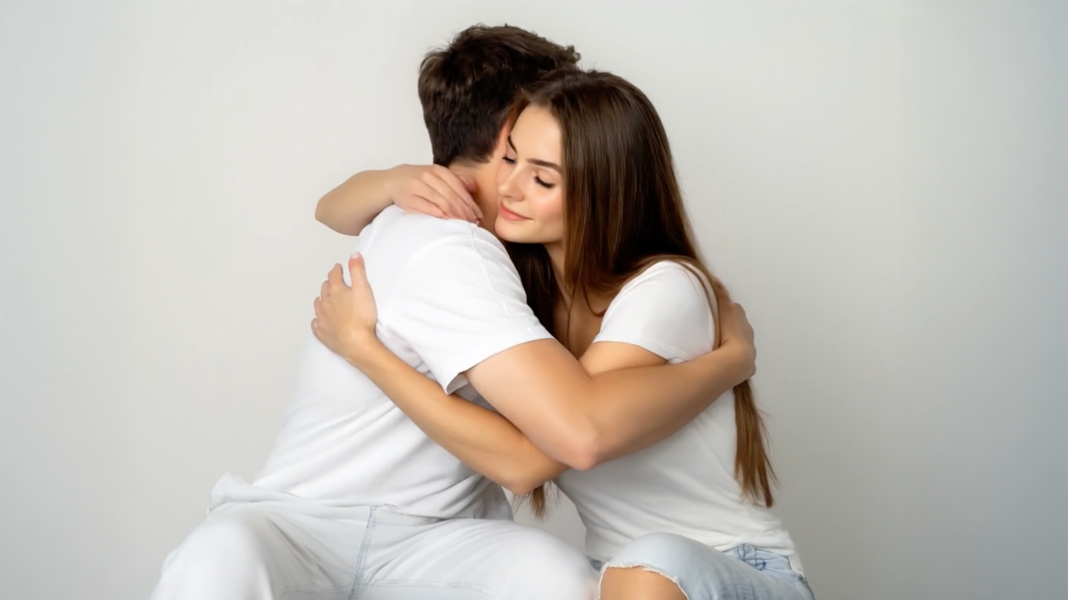 Explore gentle video effects
8. Final Quality Checklist Before Sharing
Before a portrait animation becomes part of a family video, social post, or private archive, it needs one careful review. A clip can look impressive at first glance, yet small issues may appear around the face near the end.
- Eyes stay aligned and natural.
- Mouth shape does not stretch or change identity.
- Original expression remains close to the source photo.
- Hands, fingers, glasses, jewelry, and collars stay stable.
- Hair does not melt into the background.
- Background movement supports the subject instead of distracting from it.
- The final mood matches the memory behind the image.
FAQ: Portrait Animation and Family Memory Videos
Can AI turn an old family photo into a short video?
Yes, a readable old photo can often become a short memory clip. However, gentle movement is usually safer. A slow push-in, warm light, and stable facial features often feel more natural than large gestures.
What type of portrait works best?
A clear portrait with visible eyes, balanced lighting, and a simple background is usually the strongest choice. Meanwhile, heavy blur, covered faces, tiny subjects, and strong filters need simpler motion.
Should a family group photo include facial movement?
Usually, no. Group photos are safer with camera movement, subtle parallax, and warm light. This keeps small faces stable and preserves the original family composition.
How long should a family memory clip be?
Short clips often work best. Five to eight seconds can be enough for a portrait, especially inside a montage. Longer clips may reveal more face, hand, or background artifacts.
When should video effects be added?
Effects should come after the base animation looks stable. If the face or hands already look wrong, effects may only hide the problem for a moment. A clean base clip should come first.
What prompt is safest for a memorial portrait?
A respectful prompt should use very small movement. For example, keep the original expression, add soft light, use a slow camera push-in, and avoid speech, exaggerated smiles, or large head turns.
Conclusion: Keep the Memory, Add Only the Motion It Needs
Portrait animation works best when it respects the original photo. A family image does not need to become loud, dramatic, or overproduced. Instead, it needs stable identity, soft motion, and a mood that matches the moment.
For a careful first test, photo to video ai free can be approached with one clear image, one calm motion idea, and one stability rule. That is often enough to make a portrait feel present again.
- Start with a clear portrait and one simple motion direction.
- Protect facial features, hands, expression, and original photo texture.
- Use image-to-video first, then add effects only after the base clip looks natural.