
AI Video Generator From Image: Prompt Tips for Better Motion
A good image can still become a bad video when the prompt is too vague. The common problem is not the idea. It is that the prompt does not say what should move, how the camera should move, and what must stay stable. An ai video generator from image works better when the prompt reads like a simple shot instruction, not a list of big style words. This guide gives practical formulas, copy-ready prompts, camera choices, and quick fixes for cleaner motion.
Try the image-to-video tool
1. Use This Simple Prompt Formula
Most weak image-to-video prompts are too general. They say “make it cinematic,” “make it move,” or “make it realistic.” Those phrases sound good, but they do not tell the system what should happen in the clip.
A better prompt uses one simple structure: subject + movement + camera + background motion + stability rule. This keeps the video focused and reduces strange movement.
Basic Prompt Template
Template: A [subject] in [scene], [main movement], [camera movement], [background motion], [mood], keep [important detail] stable.
Example: A skincare bottle on a dark stone table, soft reflection moving across the bottle, slow camera push-in, clean studio background, premium calm mood, keep the label readable and the bottle shape stable.
| Prompt Part | What It Means | Good Wording |
|---|---|---|
| Subject | The main object, person, or scene | A black wireless speaker on a desk |
| Movement | What should move inside the image | Light reflection moves across the surface |
| Camera | How the frame should move | Slow push-in, locked camera, gentle pan |
| Background | Small supporting motion | Steam rises slowly, clouds drift gently |
| Stability | What should not change | Keep the face, logo, label, or product shape stable |
This structure is easy to test in the image-to-video tool. Start with one short prompt. Then change only one part if the result needs improvement.
2. Choose the Right Camera Movement
Camera movement is the biggest reason some videos feel natural while others feel messy. The safest rule is simple: if the image is flat or product-focused, use less camera movement. If the image has space and depth, a gentle pan or small push can work better.
| Image Type | Best Camera Move | Why | Avoid |
|---|---|---|---|
| Product photo | Locked camera or slow push-in | Protects shape, label, and trust | Fast spin or strong zoom |
| Portrait | Slow push-in | Adds life without changing the face too much | Large head turn |
| Food or drink | Locked camera with detail motion | Steam, bubbles, and light feel natural | Moving the food shape |
| Room or interior | Gentle pan | Shows space without forcing object motion | Bent walls or fast sweeps |
| Travel scene | Slow pan with natural motion | Clouds, water, trees, and light can move safely | Unstable horizon |
| Flat lay | Locked camera | Keeps layout clean and readable | Orbit or deep tilt |
A good first test should feel safe, not dramatic. Once the first video looks stable, a second version can add stronger motion.
3. Copy-and-Use Prompt Examples
The fastest way to understand better prompting is to see real examples. Each prompt below follows the same logic: clear subject, controlled motion, simple camera instruction, and one stability rule.
Product Image Prompt
Use for: beauty products, bottles, packaging, gadgets, jewelry, accessories.
Prompt: A premium product bottle on a dark studio surface, soft light reflection moving across the bottle, locked camera, subtle shadow movement, clean luxury mood, keep the label readable and product shape stable.
Portrait Prompt
Use for: profile images, personal brand posts, founder photos, team visuals.
Prompt: A portrait in soft natural light, slow camera push-in, slight natural smile, gentle hair movement, calm professional mood, keep facial features consistent and background stable.
Food and Drink Prompt
Use for: coffee, desserts, restaurant photos, recipe posts, menu visuals.
Prompt: A hot cup of coffee beside a croissant on a wooden table, steam rising slowly, gentle camera push-in, morning light moving across the table, cozy café mood, keep cup and pastry shape stable.
Fashion or Lifestyle Prompt
Use for: outfit photos, model images, lifestyle campaigns, social posts.
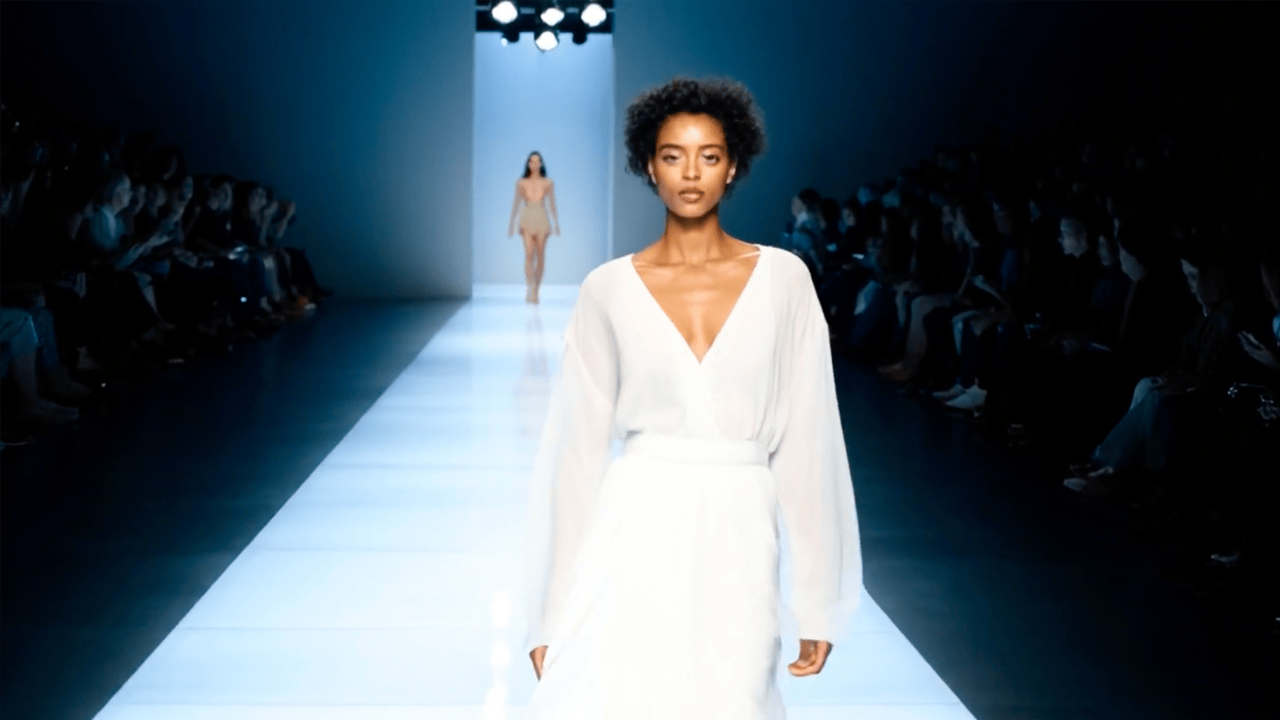
Prompt: A model wearing a clean white outfit in soft studio light, slow camera push-in, gentle fabric movement, subtle spotlight shift, editorial fashion mood, keep face, hands, and outfit shape consistent.
Travel or Location Prompt
Use for: hotel views, landscapes, property photos, travel content.
Prompt: A quiet ocean balcony at sunrise, slow camera pan to the right, curtains moving gently, distant waves in motion, warm travel mood, keep architecture straight and horizon stable.
Landing Page Background Prompt
Use for: hero sections, SaaS visuals, campaign pages, web banners.
Prompt: A dark modern workspace with a laptop and soft screen glow, locked camera, slow ambient light movement, clean tech mood, keep the left side calm with empty space for text.
4. How to Fix Bad Motion
When a result looks wrong, the prompt usually does not need a full rewrite. Most of the time, one small fix is enough. Use the table below to diagnose the issue quickly.
| Problem | Why It Happens | Add This to the Prompt |
|---|---|---|
| Product changes shape | Too much camera motion or no stability rule | Keep the product shape stable |
| Logo or label bends | The prompt does not protect text | Keep the logo and label readable |
| Face looks different | The movement is too large for a portrait | Keep facial features consistent |
| Camera moves too much | The camera instruction is too broad | Very slow camera push-in or locked camera |
| Background becomes messy | Too many details start moving | Keep the background stable with only subtle light movement |
| Scene feels boring | No clear subject motion or light motion | Add one small detail motion such as steam, light, fabric, water, or clouds |
The key is to fix only one thing at a time. If the camera is too strong, reduce the camera movement first. If the label bends, add a text stability rule first. Changing five parts at once makes the result harder to improve.
5. A Practical Vidnix Testing Workflow
A simple workflow is better than guessing. Start with one clear image and two prompt versions. One version should use a slow push-in. The other should use a locked camera with small detail motion. This comparison quickly shows which direction protects the image better.
- Choose a clean image. A clear subject and simple background usually produce better motion.
- Write a safe first prompt. Use slow movement, clear subject wording, and one stability rule.
- Test a locked-camera version. This is useful for products, labels, faces, and flat lays.
- Test a slow push-in version. This is useful for portraits, hero visuals, and product focus shots.
- Compare the first second. The opening should be clean, stable, and easy to understand.
- Save the best prompt. Strong prompts can become reusable templates for future visuals.
For a first test, open the workflow to turn one photo into video, paste one of the example prompts, and compare the result against a safer locked-camera version.
 Explore video extension
6. Match the Next Step to the Content Goal
The next step depends on the content goal. A short product clip, a longer campaign scene, and repeated prompt testing do not need the same path. The table below keeps the choice simple.
| Goal | Best Next Step | Why It Makes Sense |
|---|---|---|
| Create a short video from one still image | open the image-to-video workflow | Best for product visuals, portraits, social posts, and landing page clips. |
| Make a clean clip longer | use video extension | Best after the first short clip already looks stable. |
| Plan repeated testing or batches | review pricing and credits | Helpful before making many prompt versions or campaign assets. |
A good production path should feel clear: first create one clean clip, then extend or scale only if the base motion is strong. This avoids wasting time on long videos that already have motion problems in the first few seconds.
FAQ: Image Prompt Tips for Better Motion
What should an image-to-video prompt include?
A strong prompt should include the subject, main movement, camera movement, background motion, mood, and one stability rule. This keeps the video clear and reduces random animation.
What is the safest camera movement for product images?
A locked camera or very slow push-in is usually safest. Product images need stable shape, readable labels, and clean edges. Light movement or reflection movement can add polish without changing the product.
Why does the subject change shape?
The prompt may be asking for too much movement, or it may not include a stability rule. Add phrases like “keep product shape stable,” “keep facial features consistent,” or “keep the logo readable.”
Is a longer prompt better?
Not always. A short prompt with clear movement is often better than a long prompt full of style words. One or two focused sentences are usually enough for the first test.
How can a video look more natural?
Use small believable motion. Steam, light, fabric, water, clouds, hair, and shadows often look more natural than dramatic object movement. Also keep the main subject stable.
When should a clip be extended?
Extension works best after the first short clip already looks clean. If the base clip has distortion, extending it may carry the same problem forward.
Conclusion: Make the Prompt Easy to Follow
Better image-to-video results come from simple, clear instructions. The prompt should not try to do everything. It should choose one subject, one main movement, one camera style, and one stability rule. That gives the final clip a cleaner direction.
For the first test, a safe prompt is usually better than a dramatic one. Use a locked camera for product clarity, a slow push-in for focus, and small natural motion for atmosphere. Once the result looks stable, a stronger version can be tested.
The simplest next step is to open an ai video generator from image, choose one still image, paste one clear prompt, and compare a slow push-in version with a locked-camera version.
- Start with one clear image and one simple motion goal.
- Test a slow push-in and a locked-camera version before trying complex motion.
- Save the better prompt as a reusable template for future image-to-video content.