
AI Image to Video Generator for Picture Motion
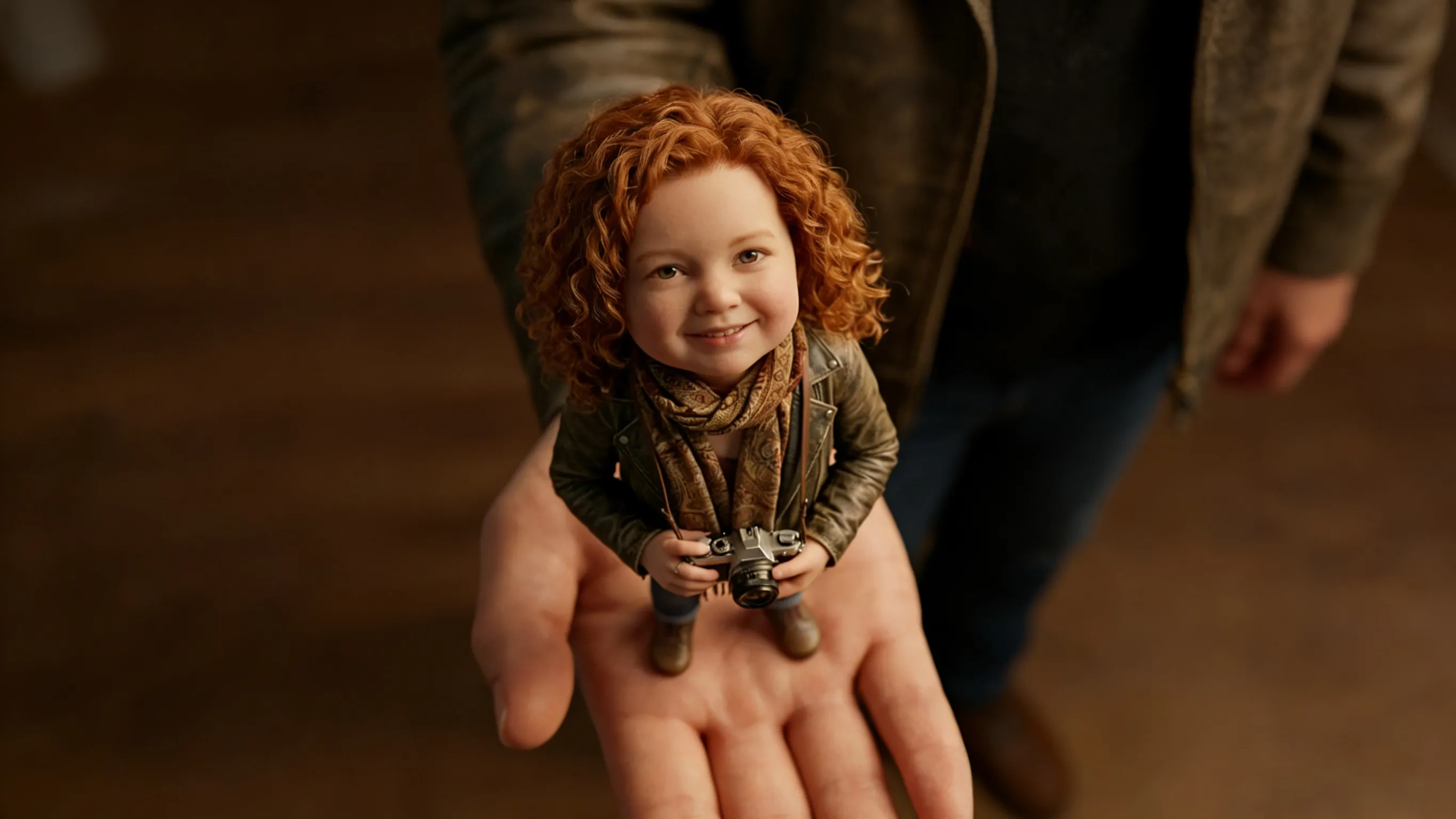
A single still image can do more than sit on a page or feed. However, it needs the right motion direction before it can become useful video content. An ai image to video generator helps turn one picture into video by pairing the image with a short motion prompt. Therefore, creators, marketing teams, ecommerce teams, and small brand teams can reuse strong visuals for product clips, social posts, landing page assets, and campaign tests without starting from a blank timeline.
What an Image-to-Video Generator Actually Does
An image-to-video tool starts with one still image. First, the image gives the tool a visual base. Then, the prompt tells the tool how the scene should move.
In other words, the picture controls the subject, setting, color mood, and overall composition. Meanwhile, the motion prompt controls the camera movement, pacing, atmosphere, and small animated details. Together, they create a short video from a static visual.
For example, a product photo can become a slow studio-style video. A poster can become a teaser clip. A portrait can gain a gentle push-in and soft background depth. As a result, the same image can support more than one content format.
However, this workflow is not magic without direction. The tool needs a clear image and a clear prompt. Therefore, a simple photo with one obvious subject usually works better than a crowded image with too many details.
The main value is speed and clarity. Instead of planning a full shoot, a team can test motion with one picture. Then, the result can guide social content, product marketing, ad concepts, or creative planning.
Why One Picture Can Be Enough
One picture can be enough when the visual already explains the main idea. For instance, a product photo may already show shape, color, texture, and positioning. Therefore, motion only needs to add attention and depth.
At the same time, many teams already have useful images. Product photos, brand graphics, lifestyle images, creator portraits, packaging shots, event posters, and app screenshots can all become short motion assets. As a result, image-to-video workflows help extend existing content libraries.
For social media, one still image can become a short post with better visual rhythm. A slow zoom, soft pan, or small background movement can make the post feel less flat. Meanwhile, the original message stays clear.
For ecommerce teams, one product image can become a simple showcase clip. However, the product should remain stable and recognizable. The goal is not to make the item look different, but to give the visual more life.
For creators, one picture can test a concept before a bigger edit. A character image, mood board, cover visual, or artwork can become a short scene preview. Therefore, creative direction becomes easier to judge before more time goes into production.
For small brand teams, this workflow can reduce production pressure. A clean image, a simple prompt, and a direct call to action can create a useful content asset. In other words, motion becomes part of the regular content process instead of a separate production project.
When This Workflow Is the Right Choice
Image-to-video is the right choice when a strong visual already exists. First, the image gives the output a clear identity. Then, the prompt adds movement without rebuilding the whole scene.
This workflow fits product pages, social videos, short ads, landing page sections, content calendars, campaign teasers, and brand announcements. In each case, the image already carries the main message. Motion simply helps the message feel more active.
However, image-to-video may not be the best choice when no clear visual exists. In that case, a text-based video workflow may be better for exploring a scene from scratch. For a blank concept, a text-to-video workflow can help build the first visual direction before an image-led version is needed.
A simple rule can help. When the image matters most, use image-to-video. When the scene idea matters most and no image exists, start with text-to-video. Therefore, the workflow should follow the available asset, not the trend.
The decision also depends on the final placement. A product page needs stability. A social feed needs movement quickly. A campaign teaser needs mood. A landing page needs polish without distraction.
What Makes a Good Source Image
A strong source image has one clear subject. First, the viewer should understand the main object or scene at a glance. Then, the motion can guide attention instead of fixing confusion.
Good lighting also matters. A bright, sharp image usually gives better detail during camera movement. However, strong contrast can work when the subject still remains clear.
Clean composition helps as well. A product centered on a simple background can support a smooth zoom. A lifestyle scene with foreground and background layers can support parallax or a slow pan.
Meanwhile, low-quality images create limits. Heavy blur, small file size, crowded objects, or hidden details can make motion less controlled. Therefore, image selection is often the first quality filter.
For product content, the label, shape, and key detail should be visible. For portraits, the face should be sharp and natural. For posters, text should be large enough to remain readable after motion.
Here is a simple image checklist:
- Clear main subject
- Sharp details
- Good lighting
- Enough space around the subject
- Simple or useful background
- Readable text, if text matters
- Strong crop for the final channel
- No important detail cut off
- No heavy blur or compression
- No clutter around the focal point
How to Write an Image Motion Prompt
An image motion prompt is the short instruction that explains movement. First, it should say what the subject is. Then, it should say what should move and what should stay stable.
A weak prompt says, “make this image move.” However, that does not give enough direction. A better prompt says, “slow camera push-in on the product, keep the label sharp, add soft studio light movement.”
In other words, the prompt should sound like a short direction for a video editor. It does not need complicated wording. Instead, it needs clear camera language and a clear mood.
A useful prompt often includes five parts:
- Subject
- Motion
- Camera movement
- Mood
- Stability instruction
For example, a product prompt can say:
“Keep the skincare bottle centered. Add a slow camera push-in, soft shadow movement, and clean studio lighting. Keep the label sharp and natural.”
This prompt works because it protects the product. Meanwhile, it adds motion that supports a polished product feel. Therefore, the output has a clearer purpose.
A social post prompt can say:
“Animate the fashion image with a gentle camera pan, light fabric movement, and soft background depth. Keep the person natural and the scene clean.”
This prompt works because it names the movement and mood. However, it avoids adding too many actions. As a result, the final video can stay focused.
A food prompt can say:
“Add gentle steam rising from the cup. Use a slow zoom in and warm morning light. Keep the cup sharp and the table scene natural.”
This prompt works because it adds realistic motion. Additionally, it matches the feeling of the image. Therefore, the video supports the original scene instead of fighting it.
Camera Pan and Zoom: Simple Motion That Works
Camera pan and zoom are two of the most useful motion directions. First, a pan moves the view across the image. Meanwhile, a zoom moves closer to or farther from the subject.
A camera pan works well when the image has width or layered detail. For example, a workspace image can pan across a desk. A product bundle can pan from one item to another. A travel-style background can pan across the scene.
A zoom works well when the image has one strong focal point. For instance, a product close-up can use a slow push-in. A portrait can use a soft zoom to create emotional focus. A poster can use a gradual zoom to build a teaser effect.
However, strong movement is not always better. A heavy zoom can make image flaws more visible. A wide pan can expose empty areas or awkward crops. Therefore, subtle camera movement often looks cleaner.
Camera movement should also match the content goal. A premium product visual may need a slow push-in. A social teaser may need a faster zoom. A calm landing page hero may need soft parallax and minimal motion.
Here is a practical motion guide:
| Motion StyleBest ForPrompt ExampleMain Risk | |||
| Slow zoom in | Product hero, portrait, poster | “slow cinematic push-in” | Too much zoom can blur details |
| Slow zoom out | Reveal, packaging, scene setup | “gradual zoom out to reveal the full scene” | Subject may feel less important |
| Pan left or right | Product group, desk setup, landscape | “smooth camera pan from left to right” | Empty space can weaken the clip |
| Pan up or down | Tall product, outfit, poster | “gentle vertical camera pan” | Important details may leave frame |
| Subtle parallax | Lifestyle image, layered scene | “soft background depth and parallax” | Flat images may show little depth |
| Stable center motion | Ecommerce product image | “keep product centered with soft light movement” | Motion may feel too quiet |
Matching the Workflow to Real Use Cases
A strong article should not only explain the tool. It should also help a team decide what to do next. Therefore, use case matching is where the conversion path becomes clear.
Product Image to Short Video
A product image is one of the best starting points. First, the product already has a clear subject. Then, motion can add depth, reflection, and attention.
For a clean product image, a slow push-in often works well. A prompt can keep the item centered while adding soft shadow movement. As a result, the video can support a product page, launch post, or short ad.
This is the point where Vidnix fits naturally. When a team already has one good image, the next step is to turn one photo into video with a focused prompt. The path is simple: upload the image, describe the motion, review the result, and adjust the prompt if needed.
Social Media Motion Post
A social media visual needs quick attention. However, it should still look clean. A gentle pan, zoom, or background movement can make a static post feel more active.
For example, a campaign image can use a slow pan across the scene. A creator portrait can use a soft push-in. A product graphic can use slight depth and light movement.
The best prompt should stay short. Instead of asking for many effects, it can focus on one camera move and one mood. Therefore, the final post has a better chance of feeling polished.
Ecommerce Product Showcase
An ecommerce image needs accuracy. The product should not change shape, color, or key detail. Therefore, prompts should protect the product while adding controlled motion.
A good prompt might say, “keep the product shape accurate, keep the label sharp, add a slow studio zoom and subtle reflection movement.” This gives the clip motion without making the product feel unrealistic.
For product detail pages, stable motion often works better than dramatic motion. A short clip can show texture, shape, or packaging presence. Meanwhile, the page still needs clear copy, pricing information, and the main product path.
Landing Page Hero Visual
A landing page hero video should support the message. However, it should not distract from the headline or button. Therefore, calm motion usually works best.
A slow zoom, soft light movement, or subtle background depth can make the page feel more dynamic. At the same time, the main product or visual theme stays clear.
For SaaS, app, or dashboard images, interface clarity is important. A prompt should keep text readable and avoid heavy motion. Therefore, phrases like “keep the screen stable” and “use minimal camera movement” can help.
Campaign Teaser or Launch Visual
A campaign teaser needs mood. First, the image should show the campaign direction. Then, motion can build anticipation.
For posters, packaging reveals, seasonal images, and launch graphics, subtle motion often works well. A slow zoom can create drama. A pan can reveal design details. Soft light movement can add a premium feel.
However, the prompt should protect important text. Event names, dates, product names, and taglines should stay readable. Therefore, the prompt can say, “keep all text sharp and stable.”
No Image Yet
Sometimes, a team has an idea but no image. In that case, image-to-video is not the first step. Instead, a text-based workflow can help create or explore a scene direction first.
After a strong frame exists, the image-led workflow can take over. This creates a useful two-step process. First, explore the concept with text. Then, animate the chosen image with a motion prompt.
This avoids forcing the wrong workflow. Therefore, the content process stays cleaner and easier to manage.
A Simple Step-by-Step Workflow
A practical workflow makes the process easier to repeat. First, choose the image. Then, write the motion prompt. Finally, review the output and decide where it belongs.
Step 1: Choose One Clear Image
Start with one image that already has a purpose. For example, it may support a product feature, social post, campaign idea, or landing page section. The image should not need a long explanation.
Next, check the image quality. Strong lighting, sharp edges, and a clear subject help. However, perfect studio photography is not always required.
If the image feels too busy, crop it or choose another asset. A simpler image often produces a better video. Therefore, image choice should happen before prompt writing.
Step 2: Define the Content Goal
Before writing the prompt, define the goal. The video may need to show a product, create mood, announce a launch, or add motion to a social post.
This goal controls the camera move. A product showcase may need a slow zoom. A lifestyle post may need a gentle pan. A landing page may need subtle motion.
In addition, define what should not change. Product labels, faces, logos, and interface text often need stability. Therefore, the prompt should include a clear stability instruction.
Step 3: Write a Focused Motion Prompt
A focused prompt should not try to do everything. First, describe the subject. Then, add one camera movement. After that, add mood and stability.
For example:
“Keep the product centered and sharp. Add a slow camera push-in, soft reflection movement, and clean studio lighting. Premium and minimal mood.”
This prompt is short, but it gives useful direction. It also avoids vague words like “better” or “amazing.” Therefore, the result has a clearer creative target.
Step 4: Generate and Review the Result
After generation, review the video for clarity. First, check whether the main subject still looks correct. Then, check whether the camera move matches the prompt.
If the video feels too busy, remove extra motion. If it feels too flat, add a clearer camera move. However, change only one or two parts at a time.
This review process matters because motion should serve the content goal. A visually exciting result can still fail if the product, message, or scene becomes unclear. Therefore, the best result is useful, not only flashy.
Step 5: Choose the Next Click
After the first result, the next action should be obvious. If the team already has a strong image, continue inside the image-to-video workflow. If the team needs new scenes first, use text-to-video. If the team plans regular content production, check pricing and credits.
This is the conversion path a useful article should provide. The reader enters with a question, learns how the workflow works, sees which use case fits, and understands where to go next.
Prompt Templates for Different Content Types
Templates help reduce blank-page thinking. However, each prompt should still match the actual image. Therefore, treat these examples as starting points, not fixed formulas.
Product Hero Prompt
“Keep the product centered and sharp. Add a slow camera push-in, soft studio shadows, and gentle reflection movement. Clean, premium, modern mood.”
This prompt works well for hero product shots. It keeps attention on the item and adds controlled motion. Additionally, it can fit ecommerce pages, product launches, and short promotional clips.
Lifestyle Product Prompt
“Animate the lifestyle scene with a smooth camera pan from left to right. Keep the product clear in the foreground. Add warm light movement and soft background depth.”
This prompt works well when the image includes setting and atmosphere. The pan helps reveal the environment. Meanwhile, the product remains part of the scene.
Portrait Prompt
“Keep the face natural and stable. Add a gentle zoom in, soft hair movement, and subtle background blur. Calm, confident, cinematic mood.”
This prompt fits creator portraits, founder visuals, speaker images, and profile announcements. However, face stability is important. Therefore, the prompt should avoid strong distortion or dramatic changes.
Poster Prompt
“Animate the poster with a slow vertical camera move. Keep all text sharp and readable. Add soft light movement and slight depth. Polished teaser mood.”
This prompt works for event visuals, campaign posters, music covers, webinar graphics, and launch announcements. The key is readable text. Therefore, the camera movement should stay controlled.
Food and Beverage Prompt
“Add gentle steam rising from the dish. Use a slow camera push-in and warm light movement. Keep the plate sharp and natural. Cozy close-up mood.”
This prompt works when texture matters. Steam, shine, and light can make the image feel alive. However, the food should remain realistic.
App or SaaS Screenshot Prompt
“Keep the screen stable and readable. Add a slow camera pan across the interface, soft glow, and minimal depth. Clean product-demo mood.”
This prompt works for dashboard visuals, feature teasers, app launches, and SaaS landing pages. Interface clarity matters most. Therefore, heavy motion should be avoided.
Seasonal Campaign Prompt
“Keep the product centered. Add a slow zoom in, soft background particles, and warm seasonal lighting. Keep the main text readable and the product shape accurate.”
This prompt can support holiday campaigns, limited releases, and themed social posts. However, seasonal details should not cover the main object. Subtle motion usually feels more refined.
Common Mistakes to Avoid
One common mistake is using a weak image. If the subject is unclear, motion will not fix the problem. Therefore, image selection should come before prompt writing.
Another mistake is writing a prompt with too many ideas. For example, one prompt may ask for pan, zoom, rain, new objects, facial changes, background replacement, and cinematic lighting. However, too many directions can reduce control.
A third mistake is ignoring the final placement. A video for a landing page should not move like a fast social clip. Meanwhile, a short social post may need stronger motion than a quiet product detail page.
Another issue is forgetting readability. Posters, labels, app screens, and product packaging often include text. Therefore, the prompt should protect important words from distortion.
A fifth mistake is using vague direction. “Make it cool” does not explain motion. Instead, “slow zoom in with soft light movement” gives clear instructions.
Finally, some teams skip the review step. However, the first output should be treated as a draft. A short revision can often make the motion cleaner and more useful.
How to Decide Which Vidnix Page Fits the Need
A strong content path should make the next step easy. Therefore, the right page depends on the starting point.
If one clear image already exists, the image-to-video page is the best next step. This path fits product photos, social visuals, portraits, posters, campaign graphics, packaging images, and ecommerce photos.
If no image exists yet, the text-to-video page can help explore a new scene from words. This path fits early concept work, first drafts, visual brainstorming, and scene testing.
If regular video creation is planned, the pricing page helps with planning. This path fits teams that need to understand credits, production volume, and ongoing content workflow.
This simple decision map can guide the next click:
| Starting PointBest PathWhy It Fits | ||
| One strong product image | Image-to-video | Keeps the product as the visual base |
| Social post image ready | Image-to-video | Adds motion without redesigning the asset |
| Campaign poster ready | Image-to-video | Creates teaser motion from approved artwork |
| No visual asset yet | Text-to-video | Starts from a written idea |
| Regular production plan | Pricing page | Supports planning for repeated use |
Final Buying and Usage Advice
The best tool choice depends on the asset. First, check whether a strong image already exists. If yes, image-to-video is the most direct path.
Next, check the content goal. Product images need stability. Social posts need attention. Landing pages need calm motion. Campaign teasers need mood.
Then, choose the right motion style. A slow zoom works for focus. A pan works for wider scenes. Subtle parallax works for layered images. Therefore, the prompt should match the image and placement.
For teams testing this workflow, one image is enough. Start with a clean product photo, poster, portrait, or social visual. Then, write one simple motion prompt and compare the result with the original image.
If the result supports the message, the next step is clear. Use the same structure for more visuals. If it does not, adjust the prompt or choose a cleaner source image.
FAQ
What is the easiest way to turn one picture into video?
The easiest way is to start with a clear image and a short prompt. First, choose a picture with one main subject. Then, describe a simple camera move, such as a slow zoom or smooth pan.
What type of prompt works best for image motion?
A clear prompt works best. It should name the subject, describe the movement, define the camera direction, and explain the mood. Additionally, it should say what needs to stay stable.
Is camera pan or zoom better for product images?
A slow zoom often works better for a single product image. However, a pan can work when the image has multiple objects or useful background detail. Therefore, the image layout should decide the camera move.
Can a product photo become a short ad-style clip?
Yes, a clear product photo can become a short promotional video. However, the product should remain accurate, stable, and easy to recognize. The prompt should protect labels, shape, and key details.
When should text-to-video be used instead?
Text-to-video is better when no image exists yet. It can help explore a scene from a written idea. After a strong visual direction exists, image-to-video can animate that chosen frame.
How many internal links should this kind of article use?
A focused article does not need many internal links. Three or four useful links are enough when they guide the reader toward the correct next step. Therefore, links should support the journey instead of interrupting the article.
Conclusion: Start with One Clear Image
A good image-to-video workflow does not begin with complicated editing. Instead, it begins with one clear image, one motion goal, and one focused prompt. The best result keeps the main subject recognizable while adding camera movement, depth, and atmosphere.
For creators, product teams, ecommerce teams, and social media teams, the strongest path is simple:
- Choose one image with a clear subject.
- Write one focused prompt with pan, zoom, mood, and stability.
- Test the result, then decide whether to create more versions or review credits for regular use.
When one image is already ready, the next step is to open the image-led workflow and test a simple motion first. For a broader starting point, the ai image to video generator page can guide the overall image-to-motion process.